
2.36.24
Group
One group of the organization: its name and description, its members, and the groups it is in itself.
How to get there
- From Groups: double-click a group, or select it and click Open.
- From a user's Groups tab, or a group's: open one of the groups listed.
Permission
You open a group's page from the Groups page, and need what that page needs. Changing the group, and adding or removing members, needs Manage organization; without it, the details are read-only and the commands are not shown. See Permissions.
Tabs
The page opens on Details. Its tabs don't show in the page's address, so a link to the page always opens on Details.
Details
- Name: the group's name.
- Description: what the group is for.
Change them and click Save.
Members
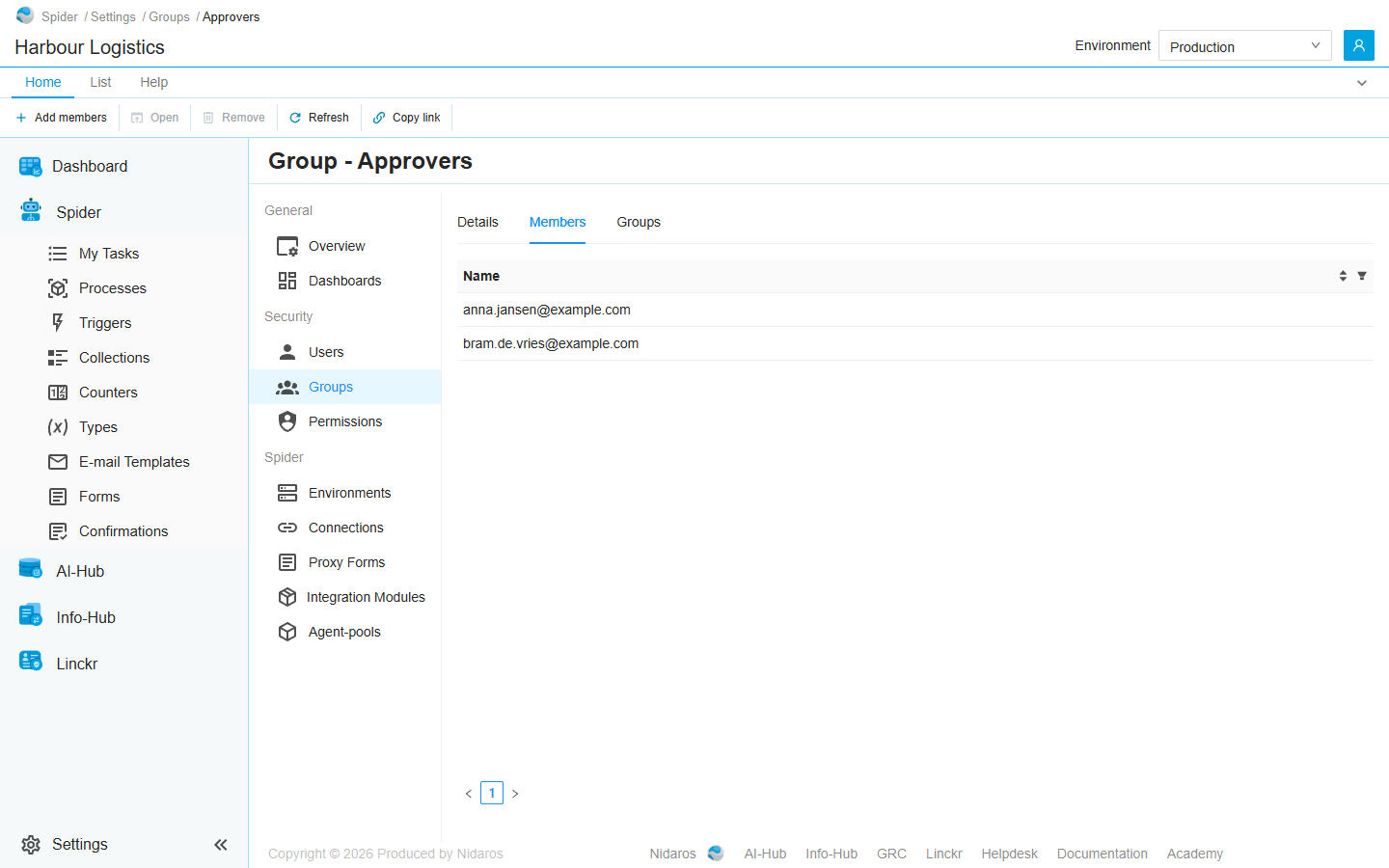
The group's members, users and groups, by Name. A permission given to this group also reaches the members of a group that is a member here. Type in the column's filter to find a member, or click its header to sort.
Double-click a member, or select one and click Open, to see their page. Add members adds members: see Add member. Remove takes the selected member out of the group, after asking.
Groups
The groups this group is a member of itself, by Name, with their Type. Add to group makes this group a member of other groups: see Add to group. Remove takes it out of the selected one, after asking.
Commands
| Tab | Group | Command | What it does | Disabled when |
|---|---|---|---|---|
| Home, Group | Save | Save | Saves the name and description. Details only. | Nothing has changed (Nothing has changed), or the name is empty (Some fields are empty or not valid). |
| Home, List | New | Add members, Add to group | Adds members (Members), or adds this group to other groups (Groups). | |
| Home, List | Open | Open | Opens the selected member's or group's page. Members and Groups only. | Nothing is selected. |
| List | Open | Open in new tab | Opens it in a new browser tab. Members only. | Nothing is selected. |
| Home, List | Manage | Remove | Takes the selected member out of this group, or this group out of the selected group, after asking. Members and Groups only. | Nothing is selected, or you may not remove this one. |
| Home, List | View | Refresh | Reads the list again. Members and Groups only. | |
| Home | Share | Copy link | Copies the link to this page. |
Drawers and dialogs
Add member
Pick a user or a group in the box: it joins the list below it. Pick as many as you like; × beside one takes it off the list again. Then click Add, or Cancel. The box offers the organization's users and groups that are not members yet.
Add to group
The same, with the groups to add this group, or a user, to: a user's page has an Add to group too, on its Groups tab.
Remove membership
Are you sure you want to remove this membership? Click Yes to remove it, or No.
When the group changes elsewhere
When someone else changes the group while you have its page open, the page shows the new values, and leaves what you are typing alone. When someone deletes it, the page says so, with a link back to the list. See Changed elsewhere.
Related chapters
- Groups
- User
- Permissions: giving a group permissions for the whole organization.