
2.36.24
Export and import
A process is built in one organization, but often needed in another: from a test organization to the real one, from one customer to the next, or from one Spider server to another. This chapter explains how a process travels as a package file, what goes with it and what doesn't, and how importing it connects it to what the receiving organization has.
Three things can be exported and imported, each on its own page:
| What | File | Where |
|---|---|---|
| A process definition, with a description of everything it uses | <name>.<version>.package.json | Processes |
| Types | <name>.types.json | Types |
| A collection, with its items | <name>.collection.json | Collections |
Nothing else is exported: not triggers, dashboards, e-mail templates on their own, or a whole organization. Set up a process's triggers again after importing it: see Triggers.
Exporting a process
Export downloads one version of a process definition as a package file:
- on the Processes page, the definition selected on the All or Drafts tab;
- on a definition's page, the version you are looking at;
- in the designer, the draft.
You need Export definition on the definition, or Export definitions. See Export.
What goes in the package
The whole process: its diagram, its sub-processes, variables, templates, milestones, reports, forms and demands, and the images its templates and forms show.
A description of what it uses, but not the thing itself, so that the receiving organization can connect the process to its own:
| What the process uses | What the package says about it |
|---|---|
| A connection | Its name and its kind, such as an e-mail connection. No address, no login, no password. |
| A collection | Its name, key type and value type, and whether it is shared. No items. |
| A counter | Its name. Not its value. |
| An e-mail template or layout | Its name. Not its content. |
| A type of the organization | The whole type, with its properties, so that it can be created. |
| A type of an integration module | Only which module it comes from. The module brings the type. |
| A process it starts | Its name. |
Left out: the settings of the Diagnostics tab, the triggers that start the process, its permissions, and its runs.
A package of more than 32 MB is still downloaded, with a warning: it can't be imported. The images make a package large. Put large pictures in files that a run reads, rather than in a template or a form.
Importing a process
Import, on the ribbon's Process definition tab of the Processes page, reads a package file and shows what it found before anything is created. You need Manage definitions and Change definitions.
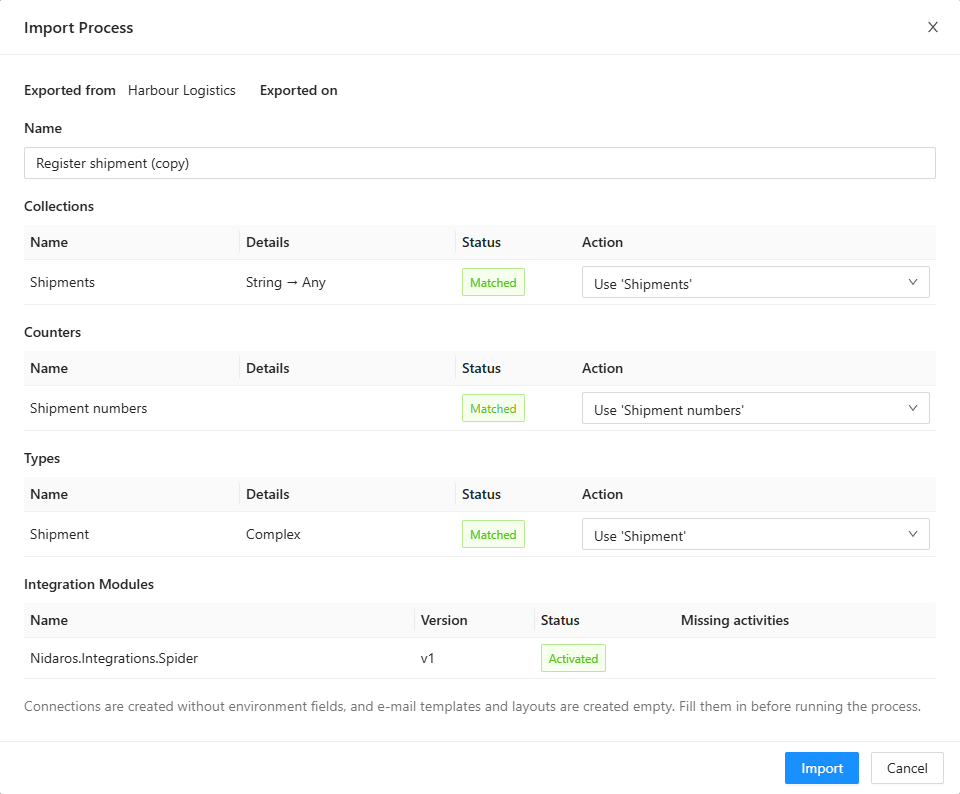
Pick the file, or drag it onto the dialog.
Give the process its name here. It must be one no process of the organization has, published or draft: This organization already has a process with this name. Choose another name.
Check what stops the import, under This package cannot be imported:
- an integration module the process uses that the organization hasn't activated, or not in the major version the process needs;
- an activity the module no longer offers;
- a type of an integration module that the organization doesn't have.
Ask someone with Manage organization to activate the module: see Integration Modules.
Connect each thing the process uses to what this organization has. See Matching below.
Click Import.
Spider then creates what you asked it to, adds the definition, and opens it in the designer as a draft. Nothing is published, and nothing runs, until you publish it: see Publishing. The designer's check looks at the imported process the way it looks at one you drew, so look at what it says first.
Matching
The dialog has a table for each kind of thing the process uses: Connections, Collections, Counters, Types, E-mail Templates and E-mail Layouts. Spider looks for each one in this organization, first as the very same one (in the organization it was exported from), then by its name, ignoring case. The Status says what it found:
| Status | Means |
|---|---|
| Matched | The organization has it, and it fits. |
| Different | The organization has one by that name that doesn't fit: a connection of another kind, a collection with other key or value types, or a type with other properties or rules. A counter, an e-mail template or a layout is never different: its name is all there is to compare. |
| Missing | The organization has none by that name. |
Under Action, choose what the process uses here:
- Use '…': the one the organization has. This is where a matched one starts.
- Map to…: another one of the organization's, such as its own mailbox connection under another name.
- Create new: a new one, under the name you give it. This is where a missing one starts.
A Different collection can't be used as it is, since its types are fixed when it is created: map it to another, or create a new one. A type of an integration module is only ever used, never created.
What Create new creates
A created thing is what the package describes, and no more:
- A connection has no settings for any environment. Fill them in on the Connections page before a run uses it.
- A collection is empty, and a counter starts again.
- An e-mail template holds only a comment, Write this e-mail before running the process, so a mail sent with it is empty; a layout holds only the place the template goes. Write them on the E-mail Templates page.
- A type is created with its properties and rules, as it was.
The dialog reminds you: Connections are created without environment fields, and e-mail templates and layouts are created empty. Fill them in before running the process.
What else to check after an import
- Processes it starts. A Start process run node is connected to the process of the same name in this organization, published or draft. When there is none, the node keeps pointing at the old one, and the designer's check says The process to start does not exist. Import that process too, or pick another one. See Starting other processes.
- Forms for people. The Form activity's users and groups are those of the organization the process was exported from. In another organization they name no one, so nobody gets the task, and nothing warns about it. Fill them in again: see User tasks.
- Milestone icons come from the server's catalog. On another server, a milestone whose icon the server doesn't have shows a plain flag in its colour: pick another icon. See Milestones.
- Demands go along with the process, so the receiving organization needs agents that meet them: see Agents, agent-pools and demands.
- Triggers don't go along: add them again.
When an import stops halfway
An import isn't all or nothing. When something can't be created, such as a connection you may not add, the import stops there and says what it created already: The import stopped after creating: …. Importing this file again matches these instead of creating them a second time. Fix the cause, and import the same file again.
When the import stopped after it added the process itself, that process is left empty, and its name is taken: The import stopped after creating the process '…', which is still empty. Import the file again under another name.
The import also refuses a file that was changed after it was exported (An image in the file does not match its reference, …), and an image of more than 2 MB.
Types and collections
Types travel as a types file. Export types takes the types you tick and the types they use; Import types shows a review of every type, new or matching one the organization has, before it writes them all at once. Types of an integration module never travel: the receiving organization needs the module. A process package carries its own types already, so a types file is for types you share between processes, or keep the same in several organizations. See Import types.
A collection travels with its items, of one environment or shared, as a collection file. Its import always adds a new collection. See Import collection, and for adding items to a collection you have, Import collection items.
Moving a process from test to production
Within one organization, you don't need to export anything: one process runs in every environment, and the environments keep the test runs and data apart from production's. Export and import are for moving between organizations, or between Spider servers:
- Export the version you tested.
- In the other organization, make sure it has the integration modules the process uses, and agents that meet its demands.
- Import the package, and map its connections, collections and counters to the organization's own.
- Fill in what was created: the connections' settings, the e-mail templates, the collection items.
- Look at what the check says, set up the triggers, and Publish.
Related chapters
- Processes: the Import Process dialog.
- Types and Collections: their export and import.
- Integration Modules: the modules an organization has activated.