
2.36.24
Counters
The organization's counters: numbers that go up by one each time a process asks, for numbering things, such as shipments or invoices. A process increases a counter with the Increase Counter activity, which gives it the counter's new value. This page lists the counters with their values, and adds, changes and deletes them.
Each environment has a value of its own for every counter, so a run in Test never uses up a number of Production. A new counter starts at 0 everywhere.
How to get there
- From the main menu: Spider › Counters.
Permission
To open the page you need Member or View counters for the whole organization.
Adding, changing and deleting counters needs Manage organization. Counters have no Permissions tab, so these can't be given for counters alone. Without them, a counter opens read-only. Commands you may not use are not shown; see Permissions.
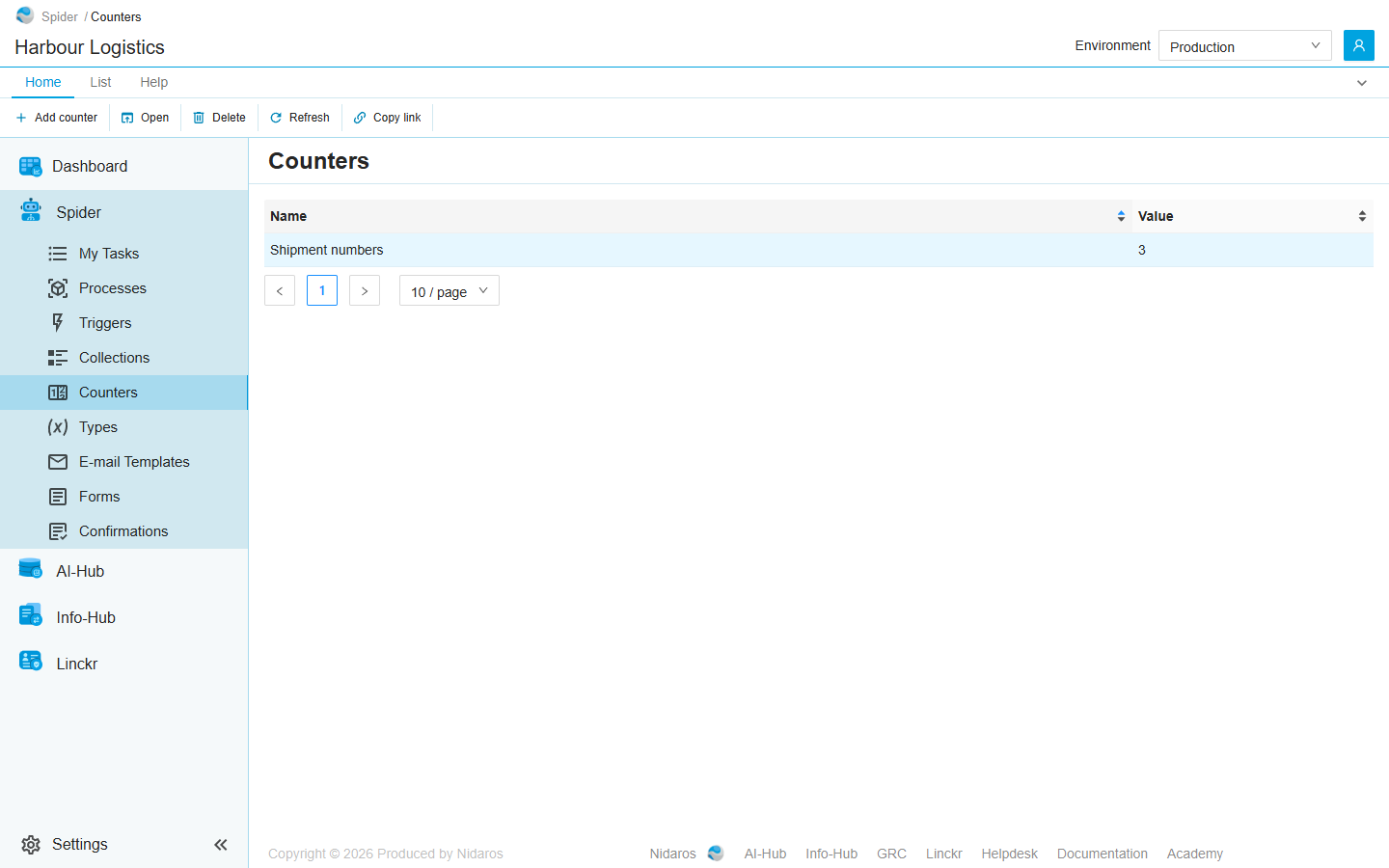
The list
Every counter of the organization, by name, with its value in the environment selected in the header:
| Column | Shows |
|---|---|
| Name | The counter's name. |
| Value | Its value in the selected environment: the last number it gave out there, or 0. |
Sort the list on Name or Value by clicking the column header.
With All environments selected in the header, the Value column makes way for a column per environment, each with the counter's value there. These columns can't be sorted. See Environments.
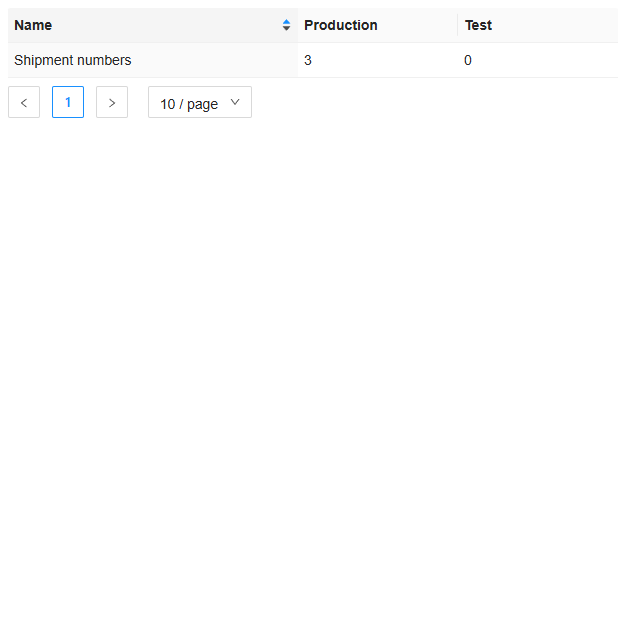
When the organization has no production environment, a column Without environment shows the values counted outside any environment.
The values follow the runs: when a process increases a counter while you look at the list, the list shows its new value by itself, within a second or so.
Double-click a counter, or select it and click Open, to see its description, or to change its name and description: see Change Counter.
Commands
| Tab | Group | Command | What it does | Disabled when |
|---|---|---|---|---|
| Home, List | New | Add counter | Adds a counter: see Add Counter. | |
| Home, List | Open | Open | Opens the selected counter. | Nothing is selected. |
| Home, List | Manage | Delete | Deletes the selected counter, after asking. | Nothing is selected, or you may not delete this one. |
| Home, List | View | Refresh | Reads the list again. | |
| Home | Share | Copy link | Copies the link to this page. |
A counter's value can't be set or reset here. It only goes up, by the Increase Counter activity, one at a time.
Drawers and dialogs
Add Counter
- Name: the name processes and people know the counter by.
- Description.
Click Add once the counter has a name, or Cancel. The counter starts at 0 in every environment.
Change Counter
Open shows the counter in the same drawer, titled Change Counter. Change its Name or Description and click Change, or Cancel. Its values stay as they are.
When you may see the counter but not change it, the drawer is titled after the counter, shows everything read-only, and has only Close.
Delete Counter
Are you sure you want to delete this counter? Click Yes to delete it, with its values in every environment, or No.
Related chapters
- Collections: the other place processes keep data between runs.
- Environments
- Lists