
2.36.24
Types
Every variable, input and output has a type: the kind of value it holds, such as a text, a number, or a Shipment with a reference and a customer. Types let the designer catch mistakes before a run does, such as a text passed where a number belongs. This chapter explains the types there are, how to make your own, and which value fits where.
The Types page, where the organization's types are kept, is described in Types.
Built-in types
These are there in every organization:
| Type | Holds | As a literal |
|---|---|---|
| String | A text. | Harbour Logistics |
| Integer | A whole number. | 42 |
| Decimal | A number with a fraction, written with a period. | 2450.5 |
| Boolean | Yes or no. | true or false |
| DateTime | A date with a time of day. | 2026-10-22T14:30:00 |
| Date | A date. | 2026-10-22 |
| Time | A time of day. | 14:30:00 |
| File | A file, such as a PDF a run received. | (none: a file comes in through a parameter or an activity) |
| An e-mail, with its sender, recipients, subject, body and attachments. | ||
| EmailAddress | An e-mail address with a name, such as Anna Jansen <anna.jansen@example.com>. |
File, Email and EmailAddress have properties, which inputs and expressions can read:
- File: FileName (invoice.pdf), Name (invoice), Extension, ContentType, Size (in bytes) and CreatedAt.
- EmailAddress: Address, Name and Display.
- Email: From (an EmailAddress); To, Cc, Bcc and ReplyTo (lists of them); Subject, TextBody and HtmlBody; Attachments (a list of File); Importance; SentAt and ReceivedAt; IsRead; and MessageId, Reference, Protocol and Folder.
Some activity inputs take Any: a value of any type, which the designer doesn't check, such as the Value of Set Variable. A property of a complex type can be Any too, for data whose shape isn't known beforehand, such as a webhook's extra fields. A variable can't be Any.
Lists
Every type comes as one value or as a list of them. That is not a type of its own, but a setting beside it: This variable is an array for a variable, the same box for a property of a complex type. A list of Delivery is a Delivery variable with the box ticked. An activity's input or output says by itself whether it takes a list.
Your own types
An organization adds its own types on the Types page (Spider › Types), with Manage types:
- A simple type is a built-in type with a name and rules of its own, such as Country code: a String that may only be NL, BE, DE, FR or GB. See A simple type.
- A complex type has properties, each with a name and a type of its own, which can be a complex type again. A Delivery has a Recipient (a String), an Address (an Address, with a street, a postal code, a city and a country) and a Weight (a Decimal). See A complex type.
Types belong to the organization, not to one process: every process of the organization can use them, and they are the same in every environment. A change to a type reaches every process that uses it, published versions included, so think twice before you take away a property that is in use.
Rules
A type can hold two kinds of rule:
- Required, on a property of a complex type: a value of the type must have it.
- Allowed values, on a simple type: the value must be one of them. Case doesn't matter: nl is NL.
There are no other rules, such as a minimum, a maximum or a pattern.
The designer offers the allowed values as a list in a literal. During a run, Spider checks the rules when it works out an activity's inputs, when it takes an activity's results, and when a webhook brings data in. A value that breaks one fails that node or call, with a message that names the property and the rule, such as must be one of '…', but was '…' or required property '…' is missing.
Types from an example, a schema or a file
You don't have to add a large type property by property:
- From example generates types from a sample of the data, in JSON or XML, or from a JSON Schema or an XSD. A sample of an order, with its lines and its customer, gives an Order, an OrderLine and a Customer type in one go. Check what it made before you add them: a sample can't tell which properties are required, so none is. See Add types from an example.
- Export writes types to a file, and Import reads such a file in another organization, or on another server. See Export types and Import types.
Types of integration modules
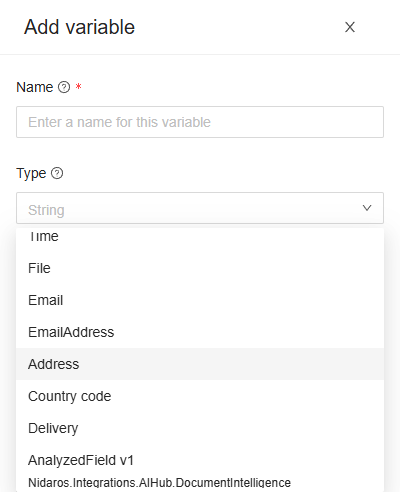
Integration modules bring types of their own, for the data their activities take and give back, such as the documents AI-Hub reads. They are listed on the Types page, read-only, with their module, and in the type list of a variable, as AnalyzedField v1 with the module's name beside it. Only a new release of the module changes them.
Which value fits where
A value fits an input, an output or a variable of the same type. The designer holds you to that:
- In a Variable input, and in an output's list, only variables of the right type can be picked; the others are grey.
- An expression must work out a value of the input's type, or the field says so: Expression does not return 'String'.
- A list fits only where a list is taken, and one value only where one value is taken. Append is the exception: it adds one value to a list. See Outputs.
- Any fits everywhere, both ways: an Any input takes every value, and a value of type Any may go anywhere. It is checked only when the run has the actual value.
There is no conversion by itself, not even between numbers. An Integer doesn't fit a Decimal input, and a number doesn't fit a text input. Convert it in an expression:
| You have | The input takes | Write |
|---|---|---|
An Integer or a Decimal, such as {Days} | String | concat({Days}), or format({Days}, "D3") for 007 |
| An Integer | Decimal | add({Days}, 0) |
| A text that holds a number | Integer, Decimal | parseInteger({Text}), parseDecimal({Text}), or parseAmount({Text}) for 1.234,56 or 1,234.56 |
| A text that holds a date | Date, DateTime | parseDate({Text}), parseDateTime({Text}) |
| A date and time | Date | date({Moment}) |
A simple type counts as itself, not as the type it is based on. A Country code is a String to the input that takes a Country code, but an expression that reads one, such as {Address.Country}, doesn't fit a String input: write concat({Address.Country}).
Complex values
A value of a complex type is read property by property: {Shipment.Reference}, {Delivery.Address.City}. A Variable input's list opens a complex variable up to its properties, so you can pick one. Case doesn't matter in an expression; in a template it does.
A path can't go through a list. {Delivery.Address.City} works, because Address is one value; {Email.To.Address} doesn't, because To is a list of addresses. Use a function for a list instead, such as first({Email.To}, "Address") or join(select({Email.To}, "Address"), ", "): see Expressions.
A property that the value doesn't have reads as empty. Past a property of type Any, nothing is checked beforehand: {Payload.Order.Customer} is read from whatever the data holds.
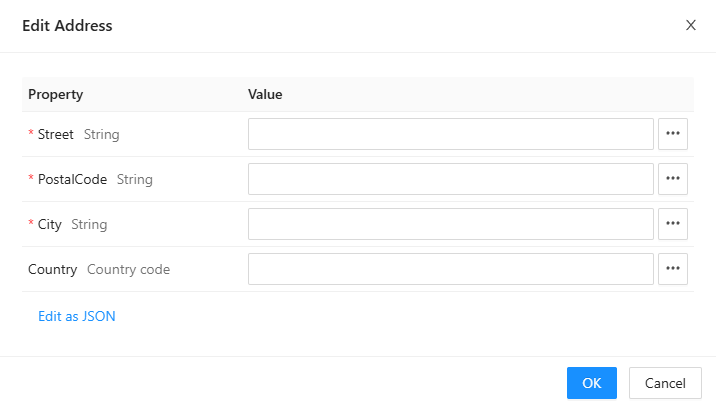
To build a complex value from parts, use a mapping; to give a fixed one, a literal, which asks for each property in a dialog:
Related chapters
- Types: the Types page.
- Variables and parameters: giving a variable its type.
- Expressions: working with values of every type.