
2.36.24
Activities and connections
An activity is one step of real work in a process: set a variable, increase a counter, send an e-mail, read a document. This chapter explains where activities come from, what their settings are, how a run hands them to an agent, and how an activity reaches another system through a connection.
Where activities come from
Every activity comes from an integration module. The Spider module (Nidaros.Integrations.Spider) has the basic ones, such as Set Variable, WriteLine, Map, Set Milestone and those for collections and counters. Other modules reach other systems: Nidaros.Integrations.Graph.Email has Send e-mail, for instance.
The designer offers the activities of the modules your organization has activated only. A module that isn't activated adds nothing to the list, even when the server has it. See Integration Modules.
Adding an activity
Activity, on the ribbon's Home or Designer tab, opens the Activities list next to the canvas.
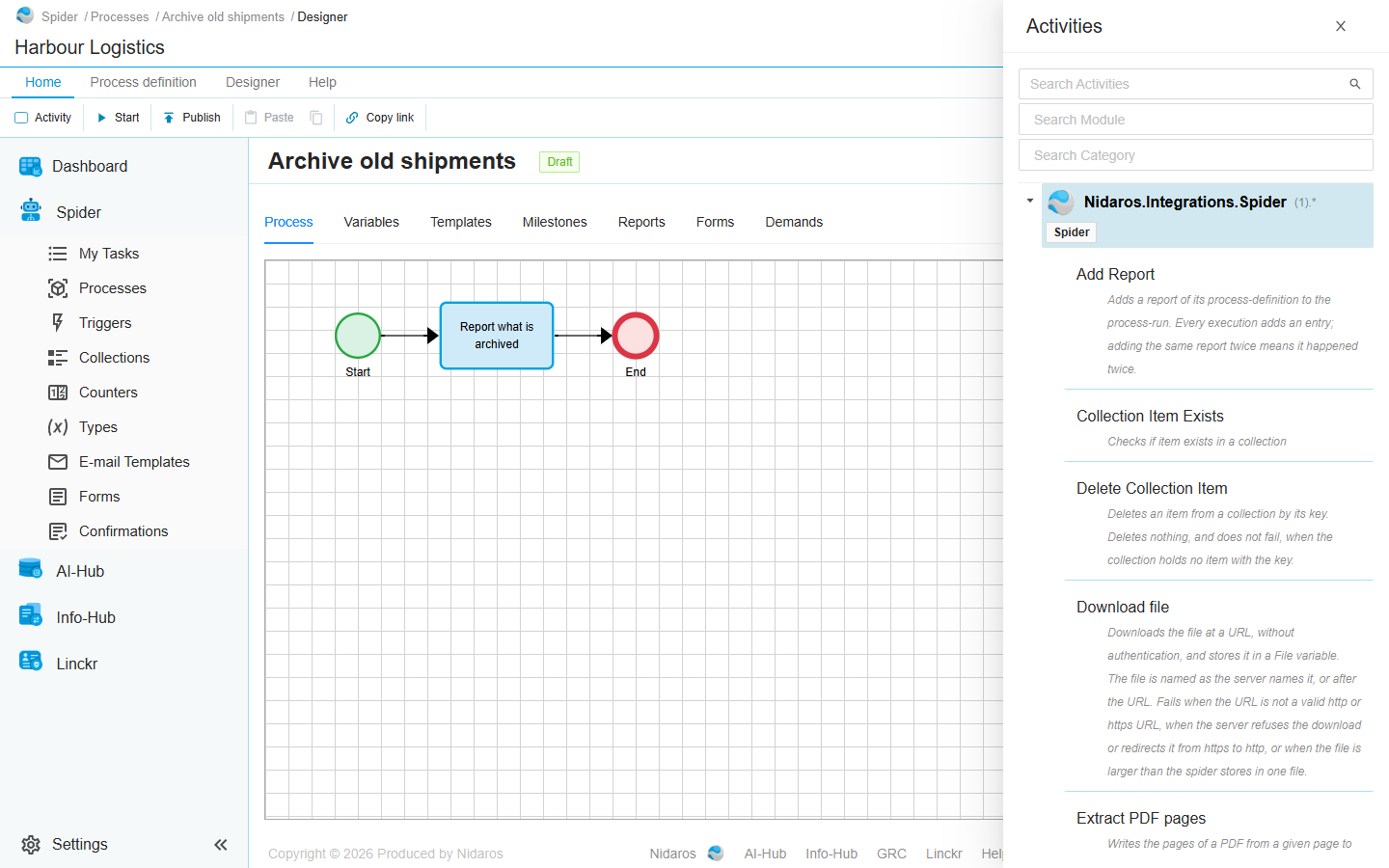
- The list is grouped by module. Each module shows its icon, its name and the major version it offers, such as (1).*, and the categories it declares.
- Search Activities finds an activity by its name, from the third letter you type. Search Module and Search Category narrow the list to the modules or categories you pick.
- Click an activity to add it, or drag it to the place on the canvas where you want it.
- The list stays open while you work on the canvas, so you can add several activities one after another. Close it with its ×.
When the list says No activities available — activate an integration module for this organization first., your organization has activated no module yet. Ask someone with Manage organization to activate one.
An activity's settings
Select the activity and click its i, or Properties on the ribbon. Its drawer has up to five tabs:
| Tab | What it holds |
|---|---|
| Details | The activity, its module and its Version, and the node's Display Name and Description. |
| Loop | Repeat for each item of a list: see Loops. |
| Inputs | The values the activity needs: see Inputs. Only for an activity that takes any. |
| Outputs | The variables its results go into: see Outputs. Only for an activity that gives results back. |
| Demands | What an agent must have to run this node: see Demands. |
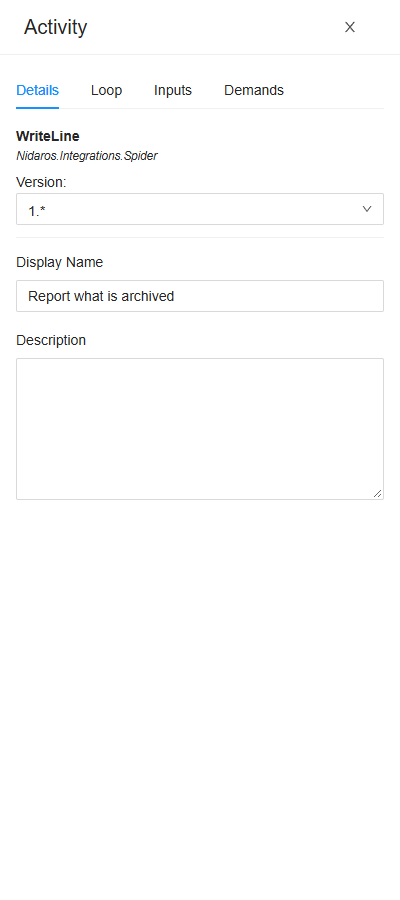
- Display Name is the name the canvas, the run's logs and the check use. Give each activity a name that says what it does in this process, such as Number the shipment rather than Increase Counter.
- Description is for the people who read the process. Nothing shows it on the canvas.
Hover over the ? beside an input or an output to read what the module says about it.
The version
Version shows the activity's major version, such as 1.*.
- A node on 1.* always runs the newest 1.x of its module. When an administrator uploads a newer release with the same major version, every node on 1.* takes it, in every process, published versions included. Releases within a major version are meant not to break what was built on them.
- A new major version is never taken by itself. It may need other inputs, or give other results. The Activities list then offers the new major version for activities you add, and the nodes you have keep theirs until you change Version yourself.
- Changing the version keeps the inputs and outputs the new version still has, and drops the others. Check the Inputs and Outputs tabs afterwards, and see what the check says.
How an activity runs
Events, gateways and sub-processes run in Spider itself. An activity runs on an agent. When a run reaches an activity:
- Spider works out the inputs: it evaluates each expression and mapping, and checks each value against the type the input expects. When an input can't be worked out, the node fails at once, with Activity input is not valid, without an agent: its log says which input, and why.
- Spider looks for an agent that is connected, free, and meets the node's demands. While there is none, the node waits, and its log says No agent available for activity …, in a verbose line. A run whose every way on waits for an agent is Waiting for an agent. It goes on by itself as soon as an agent can take the activity.
- The agent runs the activity, with the module version it needs, and reports its log lines as it goes. The run's Logs tab shows them under the node.
- The results are checked against the types the activity declares, and go into the variables its Outputs name.
When an activity fails, the node fails with the activity's own message, and the run fails with it, or goes on as Running with errors when other branches still run. A failed run can be retried, from the failed node or from an earlier one, once you have fixed the cause: see Process run. An activity has no time limit or automatic retry of its own.
An agent that doesn't confirm an activity within two minutes is put in maintenance, and the activity fails. So does an activity whose agent loses its connection while running it.
Demands
A demand says what an agent must have to run an activity: a Key, such as browser.chromium, and optionally the Value that capability must have, such as true. Agents report what they have as their capabilities. Spider hands an activity only to an agent that has every demand's key, with exactly that value where a demand gives one (any value where it doesn't). Keys are compared without regard to case, values exactly.
Demands come from three places, and all of them count:
- The module demands the version of the Spider SDK it was built with (
sdk.version), and may demand more for its activities, such as the browser it drives. You can't remove those. - The node: its Demands tab. Add demand adds one. Give one node a demand when only that step needs a particular agent, such as one with access to a file share.
- The process definition: the Demands tab of the definition, for every activity of the process. See Process definition.
When the same key is demanded twice, the module's demand wins over the node's, and the node's over the definition's. A module's demand without a value doesn't replace a value you gave.
Which capabilities an agent has is set by administrators, per agent or agent-pool: see Agents. How Spider picks an agent, and what to do when a run keeps waiting for one, is in Agents, agent-pools and demands.
Connections
An activity that reaches another system, such as a mailbox, takes a connection: the address and login of that system, kept once by the organization, with settings for each environment. See Connection and the Connections page.

- The connection is one of the activity's inputs, usually called Connection, with a list of the organization's connections to pick from. The list holds only the connections of the kind the activity needs: Send e-mail lists e-mail connections, and nothing else.
- You pick it by name, and the node keeps the connection itself, not its name, so renaming a connection doesn't break the processes that use it.
- A run uses the connection's settings for the run's own environment. The same process sends from the test mailbox in Test and from the real one in Production, without a change. A connection that has no settings for the run's environment can't be used there, and the activity can't reach its system. On the Connections page, an environment without settings shows in orange.
- The check doesn't look at the connection itself. A connection that was deleted leaves the input empty in the drawer, but the check still passes. Before you publish, look at the Inputs of the activities that use a connection.
The organization's collections and counters are picked the same way, by name, in inputs that take a Collection or a Counter: see Inputs.
Related chapters
- The designer and its palette: the other kinds of node.
- Inputs and Outputs: the values an activity takes and gives back.
- Integration Modules: the modules your organization has activated, and their activities.