
2.36.24
Diagnostics and screenshots
An activity that drives a browser or a desktop application runs on an agent, out of sight. When it fails, its log says what went wrong, but not always why: a pop-up was in the way, a page looked different, a button moved. Screenshots show you what the agent saw. This chapter explains when activities take them, how to turn them on, and where to find them.
What screenshots are
A screenshot is a picture of the agent's screen, or of the activity's browser, taken by the activity while it runs. It shows in the run's log as a line of its own, in purple with a camera icon, and a View link that opens it.
Only some activities take screenshots. Whether an activity takes them, and when, is up to its integration module: mostly those that drive a browser or a desktop application. The activities of the Spider module take none. An agent older than this feature takes none either. When you turn screenshots on for an activity that takes none, nothing shows: the log's Screenshots: … line tells you they were on.
Screenshots are off unless someone turns them on, since a picture of a screen can hold what the process works on, such as a customer's details.
On failure or always
| Setting | What the activity sends |
|---|---|
| Off | Nothing. |
| On failure | Nothing, as long as it succeeds. When it fails: the last 5 screenshots it took, and one of the moment it failed, The moment the activity failed. |
| Always | Every screenshot it takes, up to 50 each time it runs, plus the one of the moment it failed. |
On failure is the one to leave on for a while: it costs nothing while all is well, and shows the steps that led up to a failure when one comes. Always is for following an activity step by step, while you look into a problem.
When a screenshot can't be sent, because it is too large or there were too many, the node's log has a warning about it, and the activity goes on.
Where to turn them on
Screenshots can be turned on in four places. The most telling setting wins: Always over On failure over Off. A setting can turn screenshots on, but never off for another one.
| Where | For | How long | Needs |
|---|---|---|---|
| The Diagnostics tab of a process definition, Every activity | Every activity of every run of the process | 1 hour, 1 day or 7 days | Manage definitions |
| The same tab, Per activity | One activity of the process | Until you turn it off | Manage definitions |
| A trigger's Screenshots, for a trigger of an integration module | The trigger's own activity | Until you turn it off | Change definitions |
| An agent's Screenshots | Every activity the agent runs, of every organization | 1 hour, 1 day or 7 days | Add and change agents |
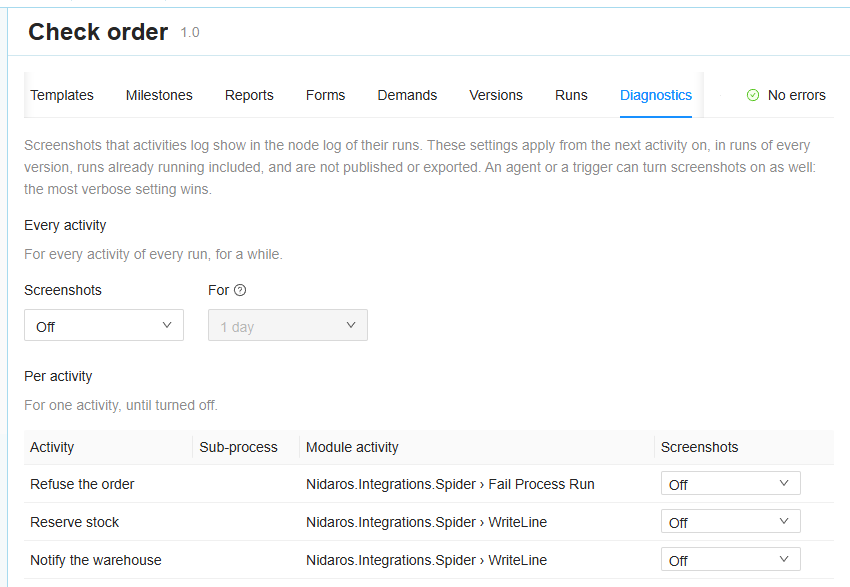
On a process definition, open its page, and its Diagnostics tab. Every activity sets screenshots for the whole process, for a while, counted from when you save. Per activity lists the process's activities, including those of its sub-processes, with the Sub-process they are in. Click Save in the ribbon. See Diagnostics.
- The settings hold from the next activity on, in runs that start later and in runs already running, of every version. Saving doesn't reach an activity an agent already runs.
- They are not part of the process: not published, not exported, and not in a new version's draft. They hold for the process as a whole.
- An activity that is no longer in the version you look at, but still has a setting, is listed as Not in this version, so that you can turn it off.
- A run started by a Start process run node follows the settings of its own process, not those of the run that started it.
On a trigger, the Screenshots setting is on the trigger's Details tab, for the types of integration modules. See Details.
On an agent, an administrator turns screenshots on from the agent's page, for a while. See Screenshots.
Every setting that holds for a time stops by itself. Turn the others off when you no longer need them.
Where to find them
- In the run's log, on the Logs tab: each screenshot is a line, with View. Screenshots only shows only those lines, and leaves the rest out. See Logs.
- The Screenshots command in the ribbon's Node group shows every screenshot of the selected node, one after the other, with Previous screenshot and Next screenshot. See Screenshots of a node.
- In a trigger run's log, in the same way. See Trigger run.
- On an issue about a failed run, which the support desk can open them from. See Issues.
- On the agent's Live tab, the latest screenshots the agent's activities took, next to what its screen shows right now. See Live.
Who may see them: the log's screenshot lines show for everyone who may read the log, but View and Screenshots need View issues or Manage organization. A member of the organization sees that there is a screenshot, but can't open it.
How long they are kept: Spider doesn't delete them. A screenshot that is no longer there says The file is no longer available.
Which setting turned them on
When screenshots are on for an activity, its log has a verbose line that says so, just before the activity is handed to the agent, and which setting decided:
- Screenshots: on failure (process definition 'Check order', until 2026-10-23 16:00 UTC)
- Screenshots: always (activity 'Read the invoice')
- Screenshots: always (agent 'robot-01', until …)
Without that line, screenshots were off for the activity. With it, and no screenshots, the activity took none. Hide verbose hides the line: turn it off to see it.
Looking into a problem
- Read the log first. The failed node's log, and the lines just before the error, usually say what went wrong. Turn Hide verbose off to see which agent ran it.
- Turn screenshots on: On failure for Every activity, for a day, on the process's Diagnostics tab, or Always for the one activity that fails.
- Retry the failed run, or wait for the next run to fail, and look at the screenshots in its log. See When a run fails.
- Look at the agent, when the problem seems to be the machine rather than the process: its History shows what else it ran, and its Live tab what its screen shows now. That is an administrator's page: see Agent.
- Turn screenshots off again, or let them stop by themselves.
Related chapters
- Running and monitoring: logs, statuses, and what to do when a run fails.
- Process definition: the Diagnostics tab.
- Agent: an agent's screenshots and its Live tab.