
2.36.24
Organizations
Every organization on this Spider server. You add an organization here, and open one to work in it. Settings in Administration opens on this page.
How to get there
- From Administration's main menu: Settings, at the bottom. It opens on Organizations, the first item of the settings menu's General group.
The settings menu
Administration's settings have a menu of their own, on the left of every settings page. It shows only the pages you may open; a group with none of them is left out.
| Group | Page | What it holds |
|---|---|---|
| General | Organizations | This page. |
| Dashboards | Administration's dashboards: see Dashboards. | |
| Security | Users | Everyone on the server: see Users. |
| Groups | Every organization's groups: see Groups. | |
| Permissions | What each user or group may do in Administration, and so on the whole server: see Permissions. | |
| Issues | Priorities | See Issue priorities. |
| Actions | See Issue actions. | |
| Rules | See Rules. | |
| Spider | Integration Modules | The modules organizations can activate: see Integration Modules. |
| Agents | Every agent: see Agents. | |
| Agent-pools | Every agent-pool: see Agent-pools. | |
| Milestone Icons | The icons milestones are drawn with: see Milestone Icons. | |
| Projectors | Core, Spider | The read models' projectors, for Spider's developers and operators. This guide doesn't describe them. |
Settings shows in the main menu only with View settings, Manage permissions, Manage issue rules, actions and priorities or Full access. Someone with only View users or View groups, say, reaches those pages by their address.
Permission
The page needs View organizations, Manage organizations or View issues, in the Platform and Business support sections of Permissions. Add organization needs Manage organizations. Full access allows both. See Permissions.
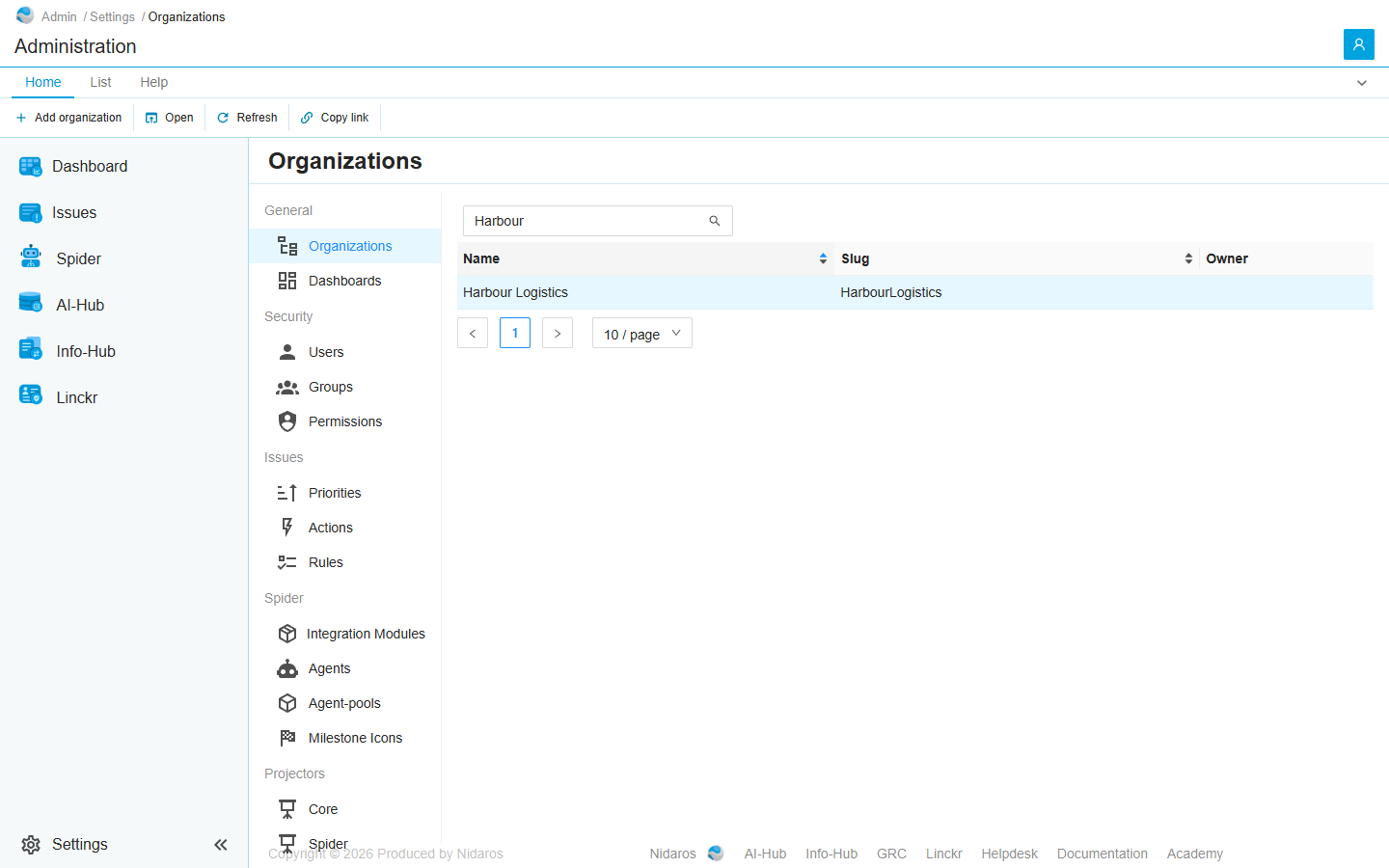
The list
| Column | Shows |
|---|---|
| Name | The organization's name, as its header shows it. |
| Slug | Its name in the addresses of its pages, such as /HarbourLogistics/processes. |
| Owner | Its owner, set when it was added. |
Type in Search by name or slug to find an organization. Click Name or Slug to sort.
Double-click an organization, or select it and click Open, to go into it: to its dashboard, with its menu. From there, its Settings are its own: see Overview. When a colleague adds an organization, the list shows it by itself.
Administration itself is not on the list.
Commands
| Tab | Group | Command | What it does | Disabled when |
|---|---|---|---|---|
| Home, List | New | Add organization | Adds an organization: see Add organization. | |
| Home, List | Open | Open | Goes into the selected organization. | Nothing is selected. |
| List | Open | Open in new tab | Opens it in a new browser tab. | Nothing is selected. |
| Home, List | View | Refresh | Reads the list again. | |
| Home | Share | Copy link | Copies the link to the selected organization, or to this page. |
An organization can't be deleted, or renamed, here: its name and slug are changed on its own Overview.
Drawers and dialogs
Add organization
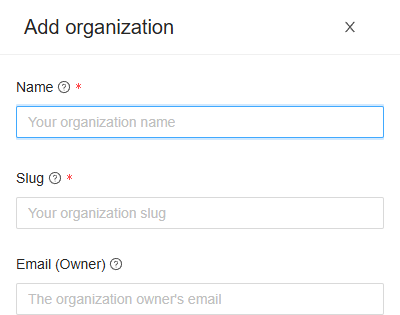
- Name: the organization's name. At most 24 characters.
- Slug: its name in the addresses of its pages. At most 24 characters: letters, digits and hyphens.
- Email (Owner): the e-mail address of its owner, optional.
Click Add, or Cancel. Spider gives the organization a database of its own, the groups Administrators and All Users, and a dashboard named Default. The owner joins both groups, and gets an e-mail with an invite: see Signing in. Without an owner, open the organization and invite its first users on its Users page.
The organization then has nothing else: environments, connections, modules and users are added in its own settings.
When the organization can't be added, a name or slug in use already, say, Spider doesn't say so: check the list afterwards.
Related chapters
- Overview: an organization's own settings.
- Users
- The screen layout