
2.36.24
Running and monitoring
A process is built to run. This chapter is about what happens then: the ways a run starts, how you follow it, what its statuses and logs tell you, and what you can do when it fails. The Process run page reference describes the run's page, tab by tab; this chapter tells you when to use what.
How a run starts
| Started by | How | See |
|---|---|---|
| You | Start on the definition's page or the Processes page, with the run's environment, its parameters, and when to start. | Start Process Run |
| A trigger | At the times of a schedule, when another system posts data, when someone submits a form, or when an integration module notices something. | Triggers |
| Another run | A Start process run node, at once or later. | Starting other processes |
| Another system | The API, with the same choices as Start. | The developer guide |
Whichever way it starts, a run keeps the version it started with, to its end, through every retry. Publishing a new version changes the runs that start after it, not those that run already.
A run always runs in one environment, and everything it does, such as the collection items it writes and the connection settings it uses, belongs to that environment. A draft never starts in production by itself: you pick its environment. See Environments.
Scheduled runs
A run given a time to start, in the Start at of the Start drawer or of a Start process run node, is Scheduled until then. Spider starts it within seconds of its time. It runs the version that was current when it was scheduled, not the one current when it starts.
While a run is scheduled, its page offers two commands in the ribbon's Run group, which need permission to start runs of its process:
- Start now starts it at once, after asking.
- Reschedule gives it another time to start:

A scheduled run you no longer want is aborted, like any other: see Abort.
Following runs
Every run of the organization is on the Processes page's Runs tab, and the runs of one process on its definition's Runs tab. Both show the runs of the environment selected in the header. Filter them by Status, or by Milestone for one process, to find the ones that need you. New runs appear at the top by themselves, as a bar Load n more. See Processes and Live updates.
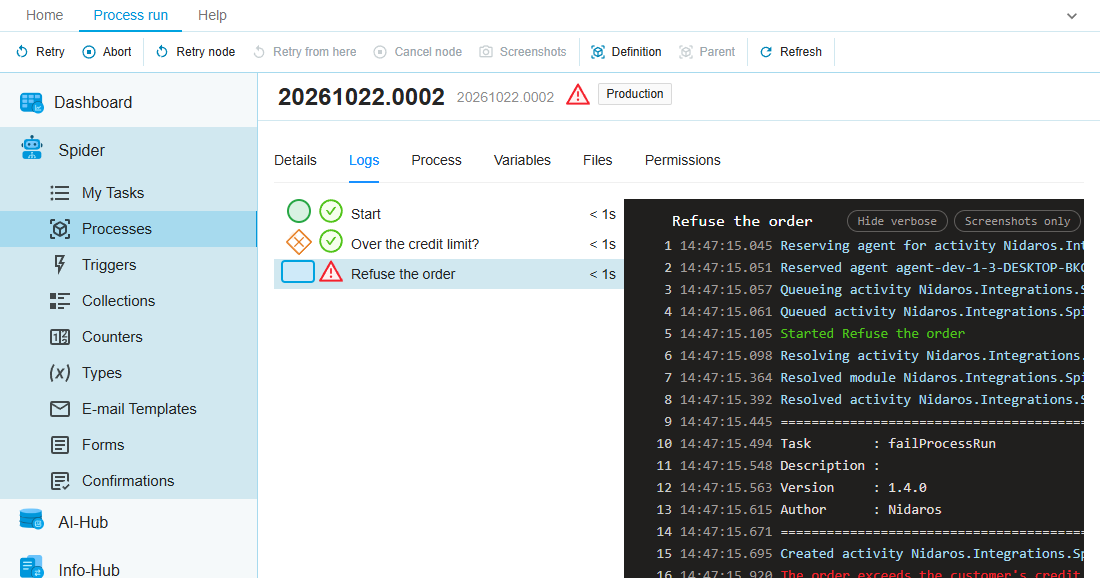
One run has a page of its own, which follows the run as it goes: its status, its nodes on the Logs tab, the path it took on the Process tab, its variables and its files. See Process run.
At a glance, a dashboard shows how many runs succeeded, failed and are still busy, and which. See Dashboard.
Give your runs a name and milestones, so that a list of runs says something to the people who look at it: Shipment 3 (PO-2024-0414), Shipped. See Milestones and reports.
Statuses
A run has one status, and each node of it has its own. The ones to know:
- Running with errors: a node failed, but other branches, or the next rounds of a loop, still go on. The run will end Failed, unless someone retries the failed node first.
- Waiting for a form and Waiting for an agent: the run can't go on until someone fills in a form, or until an agent can take its next activity. Neither has a time limit: a run can wait for days. See Forms and user tasks and Waiting for an agent.
- Failed: the run stopped. A failed run is not the end: you can fix the cause and retry it, or abort it. It stays failed until you do.
- Succeeded and Aborted are final.
Every status, of runs, nodes, trigger runs and agents, is in the appendix: see Statuses.
Logs
Each node of a run has a log, on the run's Logs tab. What the activity itself writes depends on its module. Spider adds its own lines:
| Line | Level | Means |
|---|---|---|
| Started …, Finished … | Started, Finished | The node began and ended. Every node has them. |
| Selected next node(s): … | Verbose | Where the run goes next. A gateway also logs how it evaluated its conditions. |
| Reserving agent …, Reserved agent …, Queued activity … to agent … | Verbose | Which agent was chosen for the activity, and when it was handed over. |
| No agent available for activity … | Verbose | No agent can take the activity now: the node waits. See Waiting for an agent. |
| Activity input is not valid, with a line for each input | Error | An input couldn't be worked out, or doesn't fit its type. The activity didn't run. See How an activity runs. |
| The activity's message, then Activity … failed | Error | The activity failed on the agent. The first line is the module's own reason. |
| Waiting for the form to be submitted | Information | A Form activity handed out its task. |
| Screenshots: … | Verbose | Screenshots are on for this activity, and which setting turned them on. See Diagnostics and screenshots. |
Hide verbose leaves out the verbose lines, so the activity's own messages stand out. Turn it off when you want to know why an activity waited, or which agent ran it.
The Details tab collects the errors and warnings of every node, and the run's own failure message, such as Node 'Refuse the order' failed or One or more branches failed. Start there when a run failed.
A run's logs are kept with the run. Spider doesn't delete runs: every run stays, with its logs, its variables and its files.
When a run fails
When an activity fails, its node fails, and the run goes on as Running with errors while anything else can still go on, and is Failed once nothing can. Spider sends no e-mail about it by itself: the run shows in the run lists with its status, and a support desk sees it as an issue (see Issues).
1. Find the cause. Open the run. Its Details tab lists the errors; click one to open the node's log on the Logs tab. Read the lines before the error, too: an activity often says what it was doing. When the activity takes screenshots, the log shows them: see Diagnostics and screenshots.
2. Fix it. What to fix depends on the cause:
- A wrong value: change the variable on the run's Variables tab, while the run has failed. See Variables.
- The system the activity reaches was down, or refused the login: put it right, or fix the connection's settings for the run's environment. See Connections.
- An agent misbehaved: see Agents, agent-pools and demands.
- The process itself is wrong: fix it in the designer, and publish a new version. The failed run keeps its own version, so a retry won't take the fix: abort it, and start a new run.
3. Go on. Choose one of these, on the run's page:
| Command | Where | What it does | Use it when |
|---|---|---|---|
| Retry | Run group | Runs every failed node of the run again, and carries on from there. | The cause is fixed, and the run can go on where it failed. |
| Retry node | Node group, Logs tab | Runs one failed node again. | Several nodes failed, and you want to retry one of them, or the run is still running other branches. |
| Retry from here | Node group, Logs tab | Runs the run again from an earlier node. | What went wrong started before the node that failed. |
| Cancel node | Node group, Logs tab | Gives up one node, or one failed round of a loop. | A round of a loop may fail without stopping the rest, or an activity hangs. |
| Abort | Run group | Stops the run for good. | The run should not go on. |
Retry, Retry node, Retry from here and Abort need Resolve issues and run actions; Cancel node needs Manage organization. See Process run.
Retry
Retry gives every node the run failed on a new attempt: each failed branch, each failed round of a loop, and a form that was still open when the run failed. The run is Running again, and goes on from those nodes. Nothing else is run again, and the variables stay as they are, including what you changed by hand.
Retry is there only while the run is Failed. While it is Running with errors, retry the failed node itself with Retry node.
Retry node
Retry node gives one failed node a new attempt, and leaves any other failed node as it is. The run is Running again when no failed node is left, and Running with errors otherwise. It works while the run still runs other branches, too. The node's earlier attempts stay in the log, as Attempt #1, Attempt #2, and so on.
Retry from here
Sometimes the node that failed isn't where the problem is: an earlier node wrote a wrong value, or picked the wrong branch. Retry from here runs the run again from a node that succeeded before the failure. Select that node on the Logs tab first.
- The node and every node after it run again, as new nodes. The ones they replace stay in the log, dimmed: they no longer count.
- The variables are yours to choose, when you may change them: keep their current values, or restore those they had before the node ran. Restoring loses your changes by hand since then, and keeps what other branches wrote.
- In a loop, it runs the whole loop again; in a sub-process, only that sub-process's nodes.
- It is there only while the run is Failed or Running with errors, and not on a start or end event, a node that failed itself (retry that one instead), or a node a nearer Retry from here took back.
See Retry from here for the dialog.
Cancel node
Cancel node gives up one node:
- A failed round of a loop: the round is dropped, as if its item hadn't failed, and the loop goes on. When nothing else has failed, the run goes on as well. This is how a loop over a hundred items can finish when one item can't be done. The round stays in the log as failed, and adds nothing to the loop's outputs. See When a round fails.
- A node that runs, or waits: the node fails, with Node cancelled by user, and the run doesn't go past it. The run is then Running with errors or Failed, as for any failure, and you can retry the node or abort the run.
The agent isn't told: an activity that was running on it may still finish there.
Abort
Abort stops a run for good, after asking. It works on any run that hasn't succeeded or been aborted: a running, waiting, failed or scheduled one. Its open form tasks are closed. An aborted run can't be retried.
Abort doesn't stop an activity on an agent. The agent isn't told, and finishes what it is doing; Spider ignores its result. So an activity that sends an e-mail or writes to another system may still do that after you aborted the run.
Failures in branches, loops and sub-processes
How a failure spreads depends on where it happens. The chapters on each explain it:
- Gateways: a run fails at a gateway when no condition matches and there is no fallback. See Gateways in the run.
- Parallel branches go on when one of them fails; the run is Running with errors, and ends Failed (One or more branches failed) when it reaches its end.
- Loops carry on with the next round when one fails, and stop after the last round. See When a round fails.
- Sub-processes fail as the node they are: see Sub-processes in the run.
- Start process run: the run it started is a run of its own, which fails or succeeds by itself. See Starting other processes in the run.
- Forms wait for as long as nobody fills them in. See Forms in the run.
Trigger runs
A trigger makes a trigger run each time it fires, which starts the process runs. A trigger run has statuses of its own, and fails when its activity fails, such as an integration module that can't read a mailbox. A failed trigger run started nothing: retry its activity, or abort it. See Trigger run.
Issues
Spider reports what needs attention as issues, to the support desk that looks after the server:
- a process run that failed, or a node of it;
- a trigger run that failed;
- an agent that Spider put into maintenance.
When the run is retried and succeeds, or is aborted, its issue is resolved by itself. A node you cancel raises no issue.
Issues are kept in Administration, not in the organization: the people of an organization don't see them. What the support desk does with an issue, such as e-mailing the organization's support e-mail address, is set up by them. See Issues, and the Support e-mail address on the organization's Overview.
Related chapters
- Process run: the run's page, and every command on it.
- Diagnostics and screenshots: seeing what an activity saw.
- Agents, agent-pools and demands: why a run waits for an agent.
- Statuses: every status, in one place.