
2.36.24
Collection
One collection, with its items: the values it holds, each under its key. You add, change, delete, import and export items here, and change the collection's name, description and sharing.
How to get there
- From Collections: double-click a collection, or select it and click Open.
Permission
You open a collection's page from the Collections page, and need what that page needs. A permission set given on the Permissions tab of this page holds for this collection and its items only.
Some commands need more:
| Command | Permission sets that allow it |
|---|---|
| Properties | Change collections, or Change collection on this collection |
| Export | Export collections, Manage collections, or Export collection or Manage collection on this collection |
| Changing an item | Change items |
| Delete (an item) | Manage items |
| Add item, Import items | Manage organization |
| The Permissions tab | Manage collections, Manage collection, Manage items, View permissions or Manage permissions |
Manage organization allows all of them. With Member, or with View items alone, an item opens read-only. Commands you may not use are not shown; see Permissions.
Views
Items
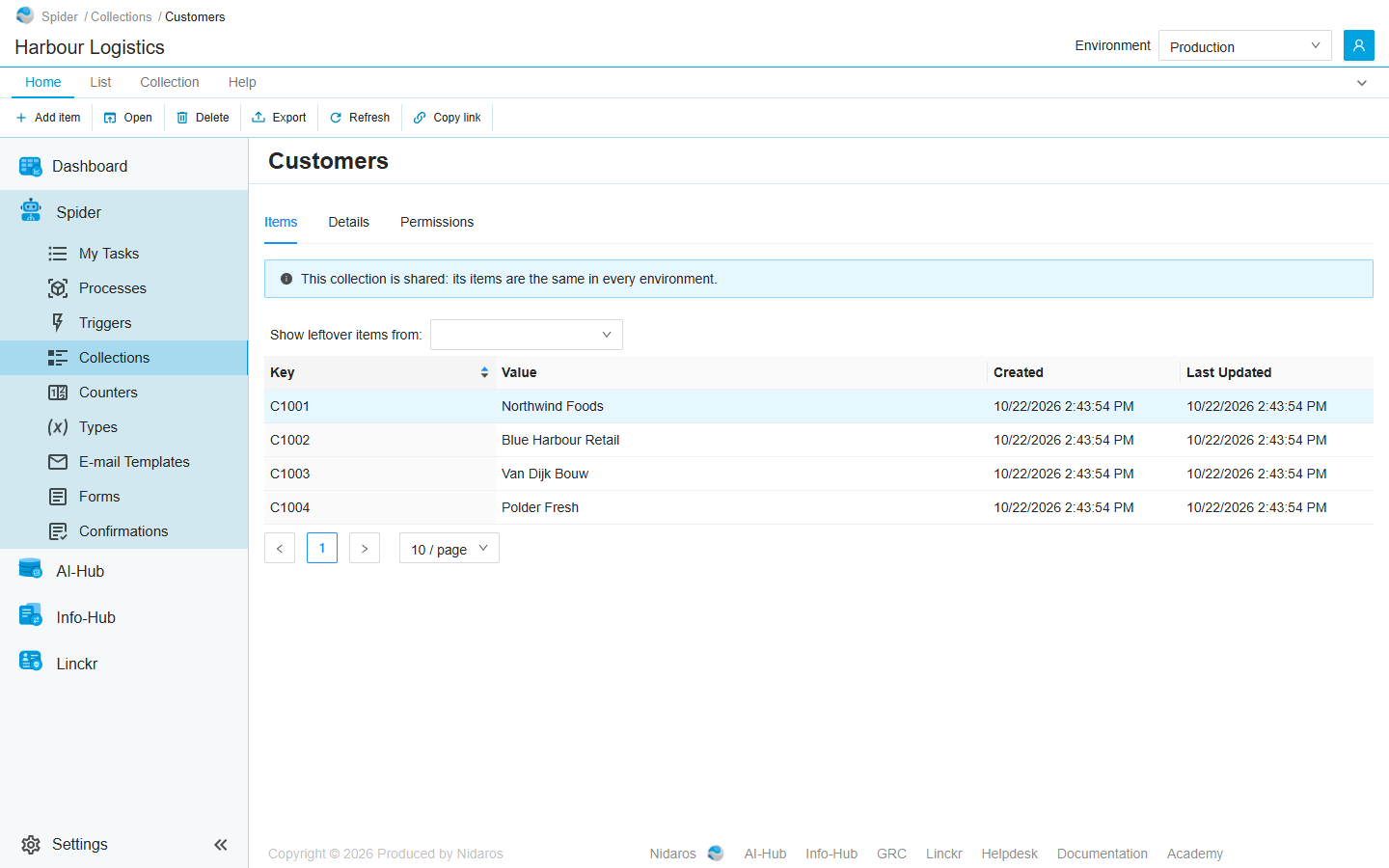
The collection's items, by key. This is the tab the page opens on.
| Column | Shows |
|---|---|
| Key | The item's key: the value processes look it up by, such as a customer number. |
| Environment | The environment the item belongs to. Shown only when the header's selector shows All environments, or when you look at a shared collection's leftover items of every environment. |
| Value | The item's value. A value of a complex type shows as <object>: open the item to see it. |
| Created, Last Updated | When the item was added, and last changed. |
Sort the list on Key by clicking its header.
Which items you see depends on the collection:
- A collection that keeps its items per environment shows the items of the environment selected in the header. With All environments it shows every environment's items, and an item with the same key can be listed once for each environment. See Environments.
- A shared collection has the same items in every environment, so it ignores the header's selector. A blue note says so: This collection is shared: its items are the same in every environment.
Items that processes add while you look at the list are not added to it by themselves: a Load 1 more button offers them. See Live updates.
Double-click an item, or select it and click Open, to see or change its value: see Change Collection Item.
Leftover items
When a collection is shared, the items the environments other than production held before stay where they were: Spider no longer uses them, but keeps them so that you can tidy them up, or use them again by turning sharing off. Show leftover items from: above the list shows them:
- Pick an environment to see the items it still holds. An orange note says: This collection shares its items, so these items of '<environment>' are not used.
- Pick All environments to see the items of every environment together, the shared ones and those of environments that have since been deleted (Deleted environment).
- Clear the box to see the shared items again.
You can change and delete leftover items, but not add any: Add item and Import items are disabled while the box shows an environment (Leftover items are not used, so nothing is added to them. Clear 'Show leftover items from' first.).
Details
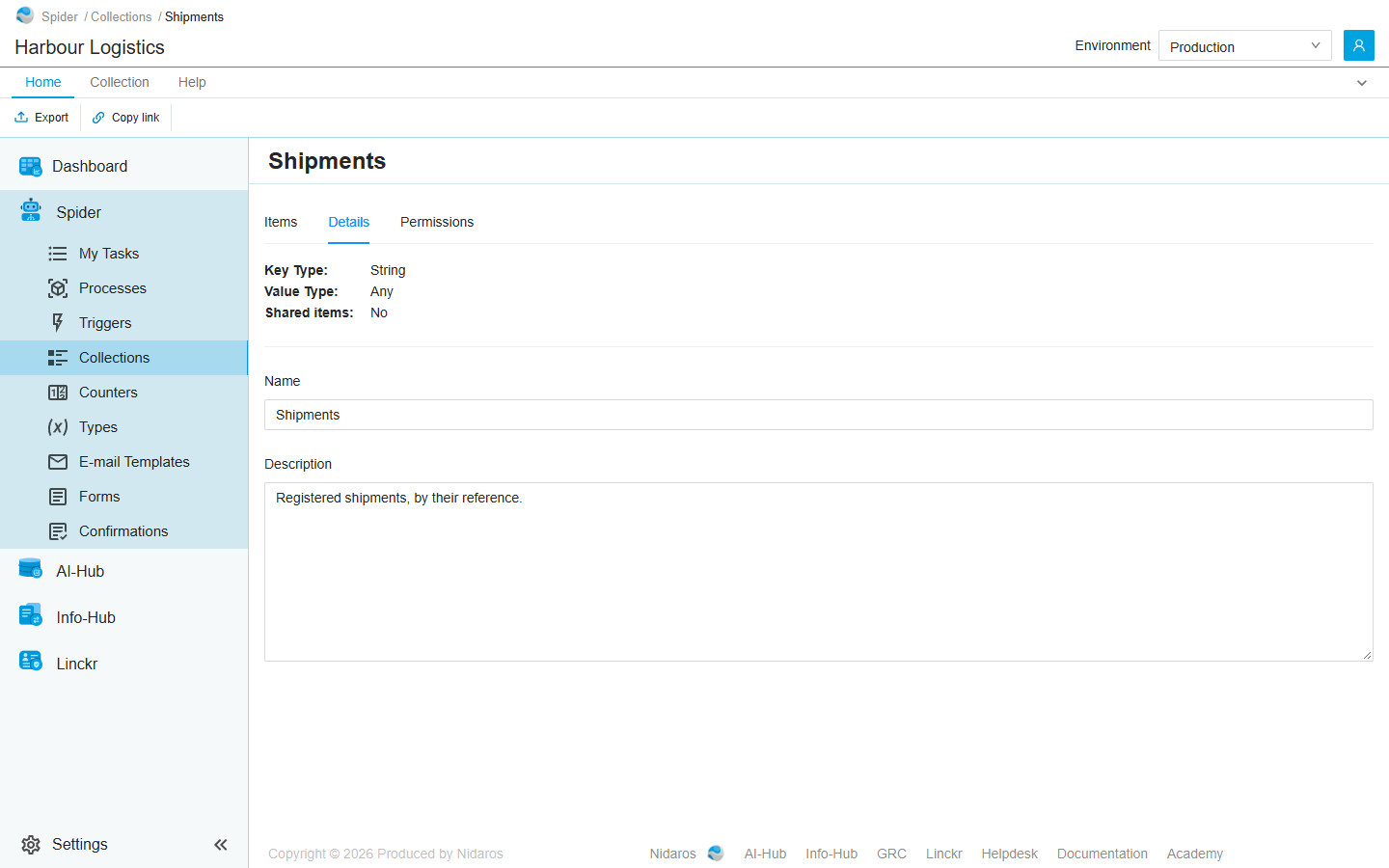
The collection's Key Type, Value Type and Shared items, and its Name and Description, read-only. Change them with Properties: see Change Collection.
Permissions
Who may do what with this collection and its items. Pick a user or a group on the left, and set each permission set to Allow, Deny or Not Set:
- Collection: View collection, Change collection, Export collection and Manage collection.
- Items: View items, Change items and Manage items.
A permission set given here holds for this collection only. A Deny here wins over an Allow given for every collection on the Collections page. See Permissions.
Commands
| Tab | Group | Command | What it does | Disabled when |
|---|---|---|---|---|
| Home, List | New | Add item | Adds an item: see Add item. Items only. | The box shows leftover items. |
| Home, List | Open | Open | Opens the selected item. Items only. | Nothing is selected. |
| Home, List | Manage | Delete | Deletes the selected item, after asking. Items only. | Nothing is selected, or you may not delete this one. |
| Collection | Manage | Properties | Changes the collection's name, description and sharing: see Change Collection. | |
| Home, Collection | Data | Export | Downloads the collection with its items: see Export. | The collection keeps its items per environment, and the header shows All environments (Select a single environment: this collection keeps its items per environment.). |
| List | Data | Import items | Adds items from an exported file to this collection: see Import collection items. Items only. | The box shows leftover items, or the collection keeps its items per environment and the header shows All environments. |
| Home, List | View | Refresh | Reads the items again. Items only. | |
| Home, Permissions | Principals | Add group or user, Remove | Adds a user or group to the Permissions tab, or removes every permission the selected one has here. Permissions only. | Remove: no user or group is selected. |
| Home | Share | Copy link | Copies the link to this page, with its tab. |
Drawers and dialogs
Add item
- Environment: the environment the item goes to. It starts on the one selected in the header (on production, when that is All environments). When you pick one the list doesn't show, the drawer says so: The item is added to '<environment>', which this list doesn't show. A shared collection has no choice here: its items go to every environment (Shared (all environments)).
- Key: the item's key.
- Value: the item's value, in a field that fits the collection's value type. … beside it opens a larger editor, which a value of a complex type, such as a Shipment, is entered in.
Click Add, or Cancel. An item whose key the environment already has is not added, and Spider doesn't say so: check the list afterwards.
Change Collection Item
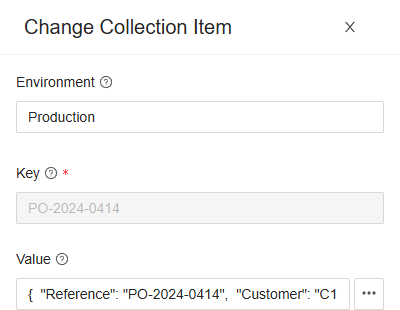
Open shows the item. Its Environment and Key can't be changed; change the Value and click Change, or Cancel.
When you may see the item but not change it, the drawer is titled after the item's key, shows everything read-only, and has only Close.
Import collection items
Import items adds the items of an exported collection file to this collection:
- Pick a file (.collection.json). The dialog shows where it came from, the collection in it, the number of items, and the environment they go to: Import into environment, the one selected in the header, or Shared. The file's key and value types must be this collection's: The key- and value-type of the file (String → Any) don't match those of this collection (…).
- Choose what happens to Items whose item-key already exists: Overwrite their values, or Skip them.
- Choose the Technical keys: Keep the keys from the file, or Generate new keys. An item whose kept key is already in use fails.
- Click Import.
The dialog shows its progress: the Total, and how many items were Added, Updated, Skipped and Failed, with the reason for each failure. When it is done, Import becomes Close. Cancel during the import stops it after the item it is on; what it imported so far stays.
Delete Collection Item
Are you sure you want to delete this collection-item? Click Yes to delete it, or No. Only the item in the environment it is listed in is deleted.
When the collection is deleted
When someone else deletes the collection while you have its page open, the page says so, with a link back to the list. See Changed elsewhere.
Related chapters
- Collections
- Types: the types of the keys and values.
- Environments
- Lists