
2.36.24
Types
The organization's own data types: the shapes of the data its processes work with. A simple type is a built-in type with a name of its own, such as Country code, a String. A complex type has properties, each of a type of its own, such as an Address with a street, a postal code, a city and a country. Variables, collections, forms and webhooks use them. This page lists them, and adds, changes, imports, generates, exports and deletes them.
The types the organization's integration modules bring along are listed too, read-only.
How to get there
- From the main menu: Spider › Types.
Permission
To open the page you need Member or View types for the whole organization, or View types on this page's Permissions tab.
Some commands need more:
| Command | Permission sets that allow it |
|---|---|
| Add, Import, From example | Manage types |
| Changing a type | Change types |
| Delete | Manage types |
| Export | Export types, or Manage types |
| The Permissions tab | Manage types, View permissions or Manage permissions |
Manage organization allows all of them. Member lets you see every type, but not add, change or delete one: a type then opens read-only. Commands you may not use are not shown; see Permissions.
Views
Overview
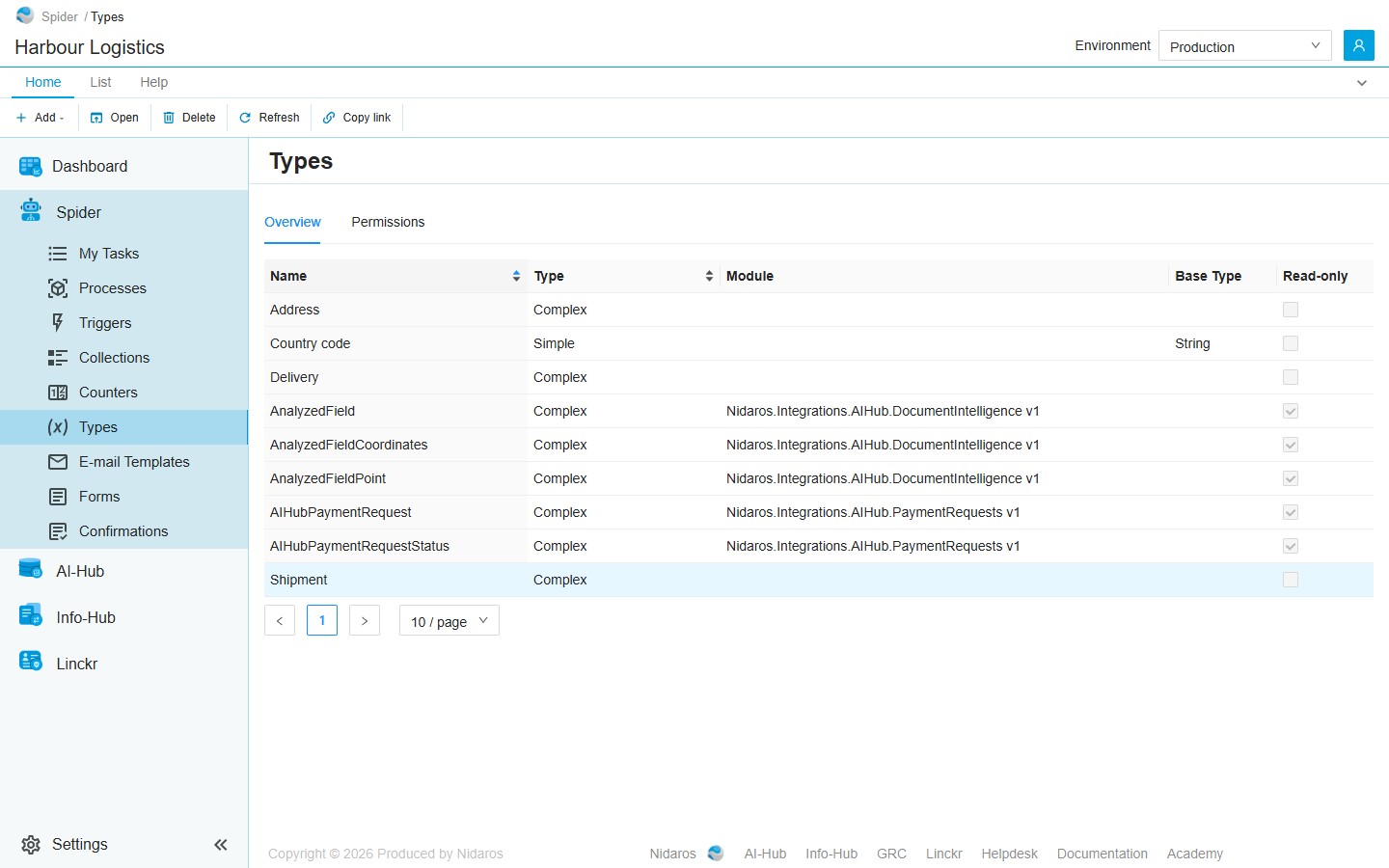
Every type of the organization. This is the tab the page opens on.
| Column | Shows |
|---|---|
| Name | The type's name. |
| Type | Simple or Complex. |
| Module | For a type an integration module brings along: the module and its major version, such as Nidaros.Integrations.AIHub.PaymentRequests v1. Empty for the organization's own types. |
| Base Type | For a simple type: the built-in type it is, such as String. |
| Read-only | Ticked for a type of an integration module, which only the module changes. |
Sort the list on Name or Type by clicking the column header. A module's types sort under the module's name, so they come together.
Types are the same in every environment. Double-click a type, or select it and click Open, to see or change it: see A simple type and A complex type. When a colleague adds, changes or deletes a type, the list shows it by itself.
Permissions
Who may do what with the organization's types. Pick a user or a group on the left, and set each permission set to Allow, Deny or Not Set: View types, Change types, Export types and Manage types. They hold for every type: a type has no page of its own, so permissions can't be given for a single type. See Permissions.
Commands
| Tab | Group | Command | What it does | Disabled when |
|---|---|---|---|---|
| Home, List | New | Add › Simple type, Complex type | Adds a type: see A simple type and A complex type. | |
| Home, List | Open | Open | Opens the selected type. | Nothing is selected. |
| Home, List | Manage | Delete | Deletes the selected type, after asking. | Nothing is selected, you may not delete this one, or it is a module's type (This type is provided by an integration module and cannot be changed or deleted.). |
| List | Data | Import | Adds or changes types from a types file: see Import types. | |
| List | Data | From example | Generates types from a sample or a schema: see Add types from an example. | |
| List | Data | Export | Downloads types as a types file: see Export types. | |
| Home, List | View | Refresh | Reads the list again. | |
| Home, Permissions | Principals | Add group or user, Remove | Adds a user or group to the Permissions tab, or removes every permission the selected one has here. Permissions only. | Remove: no user or group is selected. |
| Home | Share | Copy link | Copies the link to this page, with its tab. |
Drawers and dialogs
A simple type
Add › Simple type opens Add Simple Type, and Open on a simple type Change Simple Type:
- Name: the name the type is picked by, such as Country code.
- Base Type: the built-in type it is: String, Integer, Decimal, Boolean, DateTime, Date or Time.
- Description.
Click Add or Change, or Cancel.
A simple type can also have rules: that a value is Required, and the Allowed values, such as NL, BE and DE. The drawer doesn't show them. They come from an import or an example, where you can see and change them.
WARNING
Change in this drawer removes the type's rules: a Country code that allowed only NL, BE and DE then allows any text. Import the type again to give them back.
A complex type
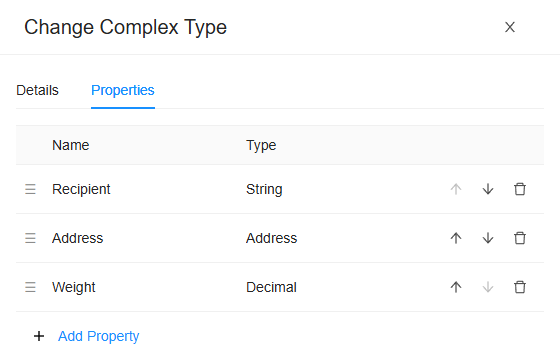
Add › Complex type opens Add Complex Type, and Open on a complex type Change Complex Type, with two tabs:
- Details: the type's Name and Description.
- Properties: its properties, in their order, each with its Name and Type. That order is the order forms and editors show them in.
- Add Property adds one, and clicking a property changes it: see Property.
- Drag a property by its handle (☰), or use Move up and Move down, to change the order.
- Delete property removes one.
Nothing is saved until you click Add or Change at the bottom of the drawer; Cancel leaves the type as it was. When the save fails, Spider says why, for example a property whose type no longer exists.
Property
- Name: letters, digits, underscores and hyphens only (A property name may contain only letters, digits, underscores and hyphens.), and not the name of another property of the type, whatever its case.
- Type: a built-in type, Any for a property that holds whatever it is given, or one of the organization's types. A module's type shows with its module and major version.
- This variable is an array: the property holds a list of values of its type.
- Description.
Click Add or Change to put the property in the type's list, or Cancel.
Read-only
A type of an integration module, or any type when you may not change types, opens as View Simple Type or View Complex Type: everything read-only, and only Close. Click a property to see it.
Add types from an example
From example makes types out of data you already have:
- Pick a file, or paste its text: a JSON sample, an XML sample, a JSON Schema or an XSD, of at most 4 MB. Format says which it is, or leave it on Detect.
- Give the Root type a name: the type of the whole sample, such as Order. A picked file fills it in with the file's name. An XSD names its own types.
- Click Generate. When the example can't be read, the dialog says why, and where.
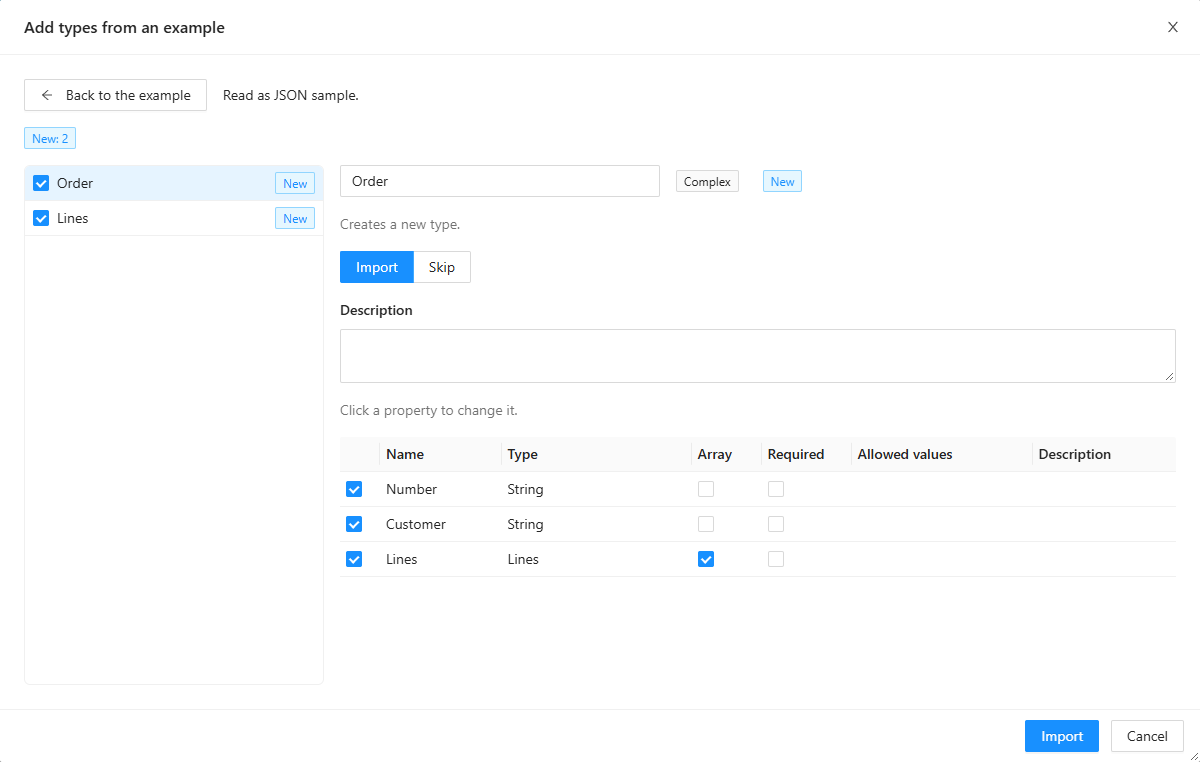
- Check the types in the review: see The review. Every type and property can be changed here: click a property to change its name, type, Array, Required, Allowed values and Description. Back to the example goes back, and keeps what you pasted.
- Click Import.
Some things a sample or schema says can't be part of a type. The review warns about them: Check these before importing. For example, a property that only ever had empty values becomes a String, and one that holds lists of lists is left out.
Import types
Import reads a types file (.types.json) that Export made, in this organization or another:
- Pick the file. The dialog shows where it was Exported from and when it was Exported on.
- Check the types in the review: see The review. Only which types are imported, how, and the names of new types can change here.
- Click Import: <n> types imported.
The review
The review of an import, or of types from an example, lists the types on the left and shows the selected one on the right.
- At the top: how many types are New, Changed, Unchanged and Read-only. Then the Required integration modules: the modules the types use, each Present or Missing in this organization. Then, in red, what stops the import, such as Another new type is also named 'Order'.
- On the left: every type, ticked to import it or not, with its status. A flag marks a type with a problem or a warning; point at it to read it.
- On the right: the selected type.
- A new type: Creates a new type. You can rename it.
- A type the organization has already: Matches the existing type '<name>'. Choose Merge, which keeps the properties only the existing type has, or Replace, which removes the properties only the existing type has. A simple type is always replaced. The Change column shows what happens to each property: Added, Changed, Removed or Kept.
- Import or Skip it. A type that can't be changed can't be imported, and the review says why: The existing type already is what this one would make it., An integration module provides the existing type, so only the module changes it., or You may not change the existing type.
- Its properties, each with Name, Type, Array, Required, Allowed values and Description, and a box to leave one out.
Skipping a type that another imported type uses is a problem: Shipment uses 'Address', which is skipped: import it too. Import is enabled once nothing stops the import. One import writes at most 500 types.
Export types
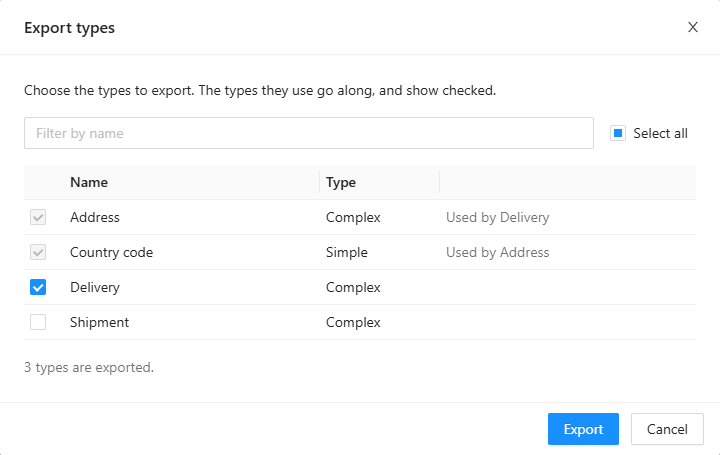
Choose the types to export. The types they use go along, and show checked.
- Tick the types to export, or Select all. Filter by name narrows the list.
- A type that a ticked type uses is ticked and greyed, with Used by <type>: it goes along.
- Types of integration modules are never exported. When a ticked type uses one, Required integration modules names the module, which the receiving organization must have.
Click Export to download <name>.types.json, named after the type when you export one, and after the organization when you export more. Import reads it.
Delete Type
Are you sure you want to delete this type? Click Yes to delete it, or No. Spider doesn't check whether a variable, a collection or another type still uses it: check that first.
Related chapters
- Collections: the key and value types of a collection.
- Process definition: the variables that use types.
- Triggers: a webhook's data schema.
- Lists